
Walk-ins & waitlist
Seat walk-in guests immediately or queue them, and offer tables to the right party as they free up.
Walk-ins and the waitlist use the same availability engine as reservations, so a walk-in cannot take a table that is occupied, blocked, or needed by a booking during its stay.
Walk-ins
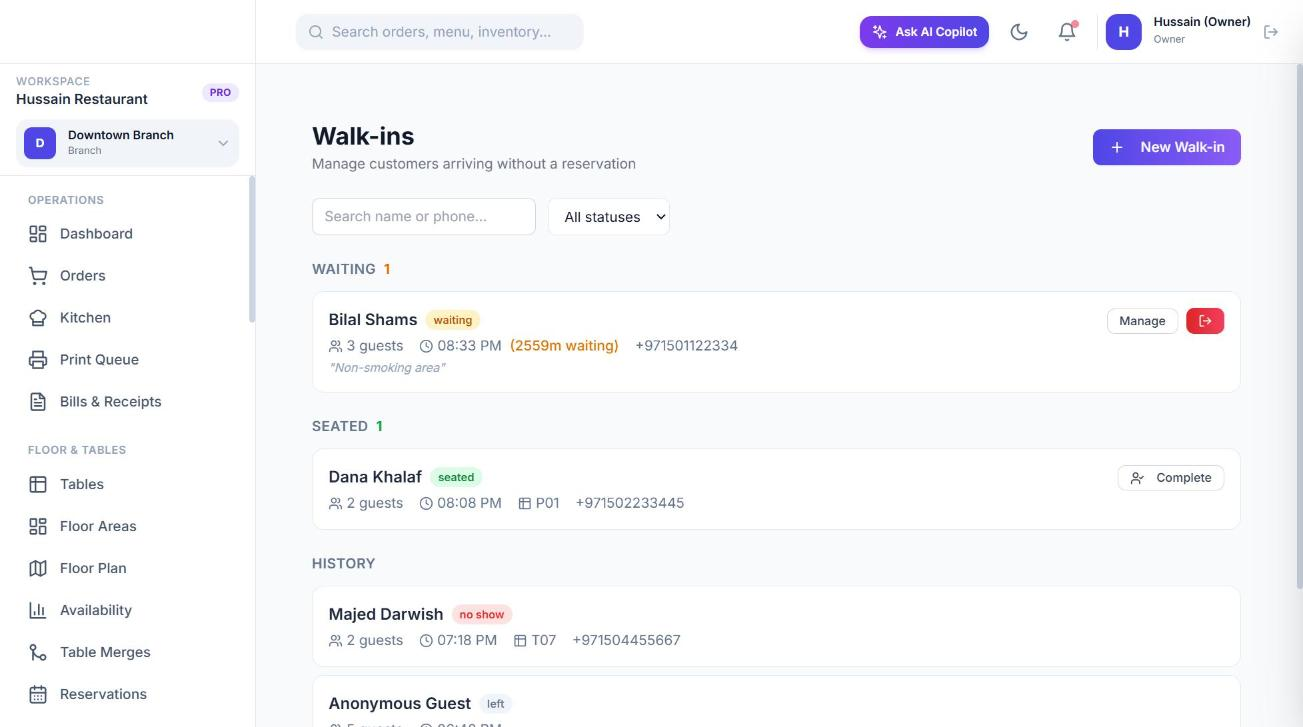
Go to Floor & Tables → Walk-ins and choose to add one: name, optional phone and email, party size, estimated wait, special requests and notes.
- If you choose a table, the party is seated immediately and recorded as *Seated*.
- If you do not, the party is *Waiting*, and you can seat them later with a table.
- Capacity can be overridden with a written reason.
- Statuses are Waiting, Seated, Completed, Left and No-show.
- You can convert a walk-in into a customer profile (matching an existing customer by phone, or creating one).
- Marking the party as left frees the table for cleaning and tells staff who on the waitlist is next.
Waitlist
Go to Floor & Tables → Waitlist to queue parties when nothing is free.
| Field | Notes |
|---|---|
| Name, phone, email, party size | Name and a whole-number party size are required. |
| Preferred area, table and seating type | Seating type: indoor, outdoor, bar, window or any. |
| Estimated wait and notes | Quoted wait in minutes. |
- The same phone number cannot be queued twice; Sofra returns the existing entry.
- Each new entry shows its queue position.
- The page shows the average wait from parties seated today.
- Notify marks that you have told a party their table is ready. Seat seats them and records a linked walk-in. Statuses are Waiting, Notified, Seated, Left and No-show.
Table suggestions
For each table that is free right now, Sofra suggests which waiting party should get it: first come, first served among parties that fit, preferring the table’s area or the party’s preferred table. It only offers a table that stays free for the next stretch, so it never promises a table a reservation needs. When you free a table, a match is shown to the staff member who did it.
Ready to try it?
Create a free account and follow along.