
Floor areas, tables & floor plan
Model your dining room, set capacities and see live table status.
You describe your room as floor areas (such as Indoor, Patio, VIP) that contain tables. Everything is per branch.
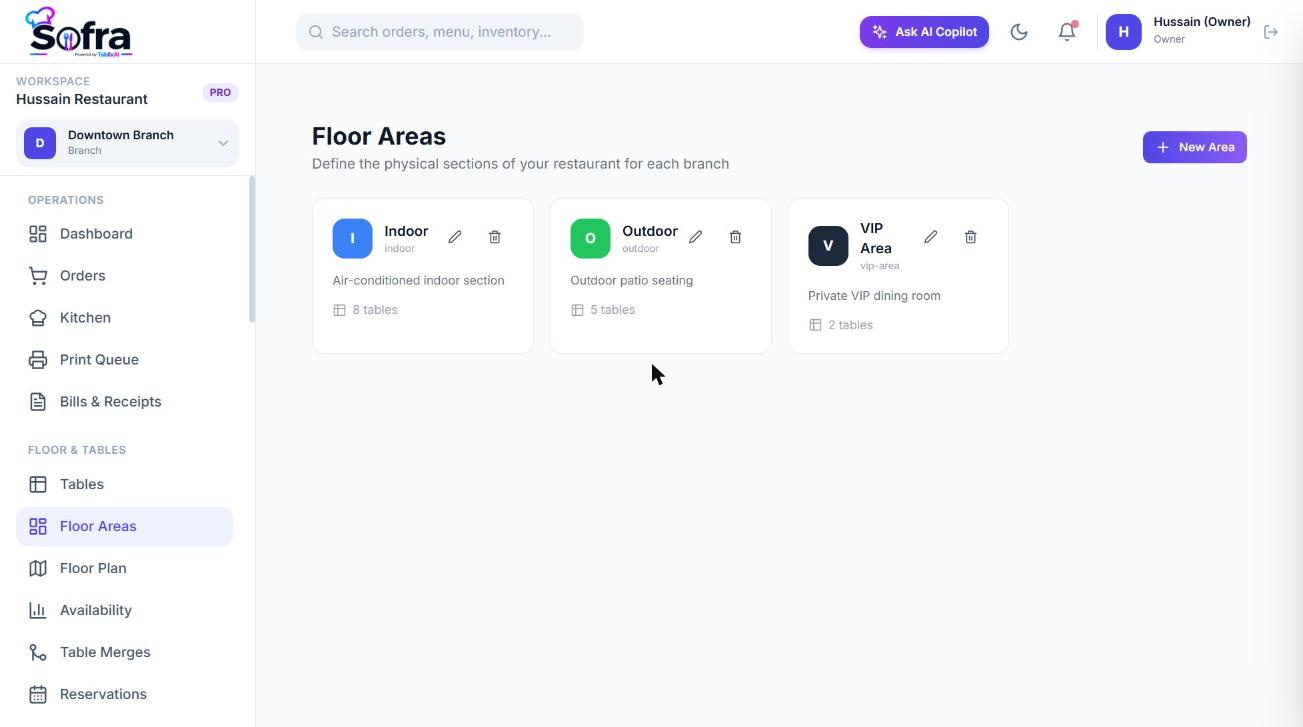
Floor areas
Go to Floor & Tables → Floor Areas and add an area with a name, description, colour and sort order. Colours are used on the floor plan and in reservation views. An area can also be closed on specific dates (for example a private event or maintenance); no bookings are taken for it on those dates.
Tables
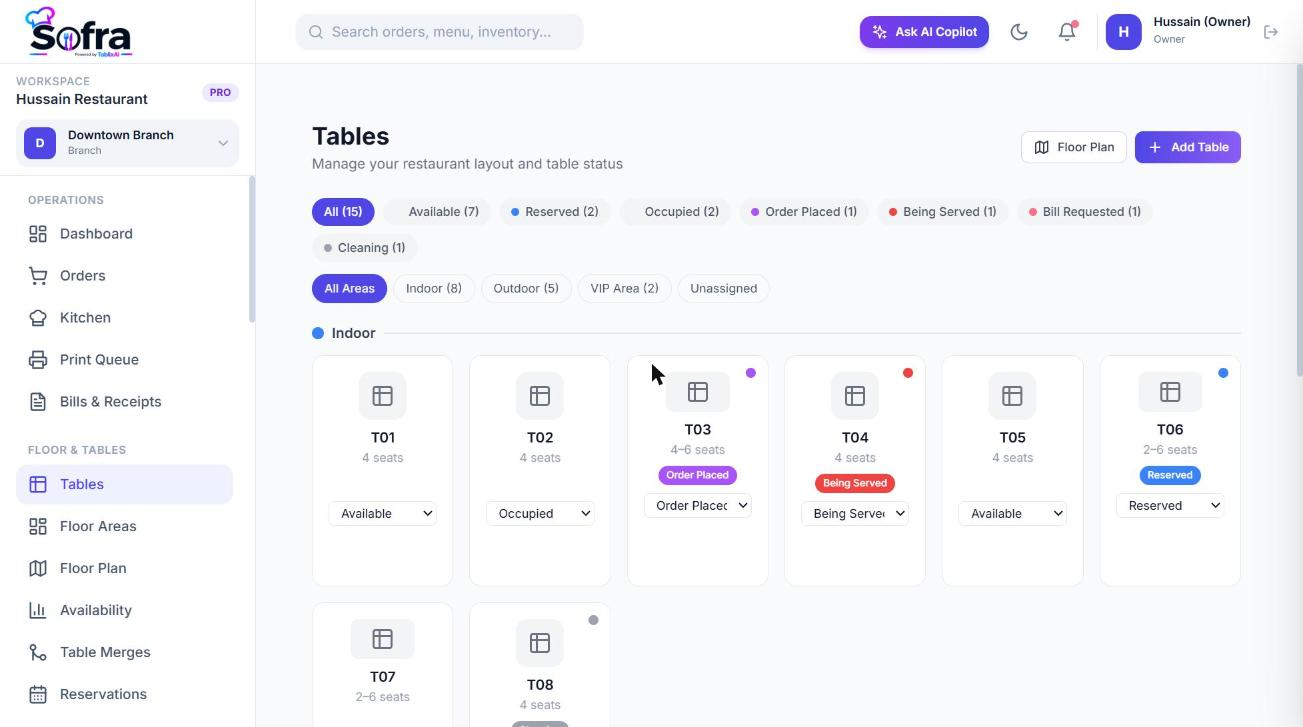
Go to Floor & Tables → Tables and add tables one by one. For each table you can set:
| Field | What it does |
|---|---|
| Table name | For example T1 or VIP-A. |
| Section | Free-text grouping such as Indoor or Patio. |
| Floor area | Assign to one of your floor areas. |
| Table type | Standard, booth, bar, high-top or outdoor. |
| Shape | Square, round or rectangle (used on the floor plan). |
| Capacity | Seats. Required. |
| Min and max capacity, flexible | Optional bounds for parties that fit a range of sizes. |
| Cleaning buffer | Minutes a table is held after a reservation before the next one can start. Default 15. |
You cannot shrink a table below the size of a booking already placed on it.
Floor plan
Floor & Tables → Floor Plan draws your tables on a canvas. Normally the plan shows live status and refreshes every 15 seconds. Choose Edit Layout, drag tables to match your real room, and the positions are saved as you drop them.
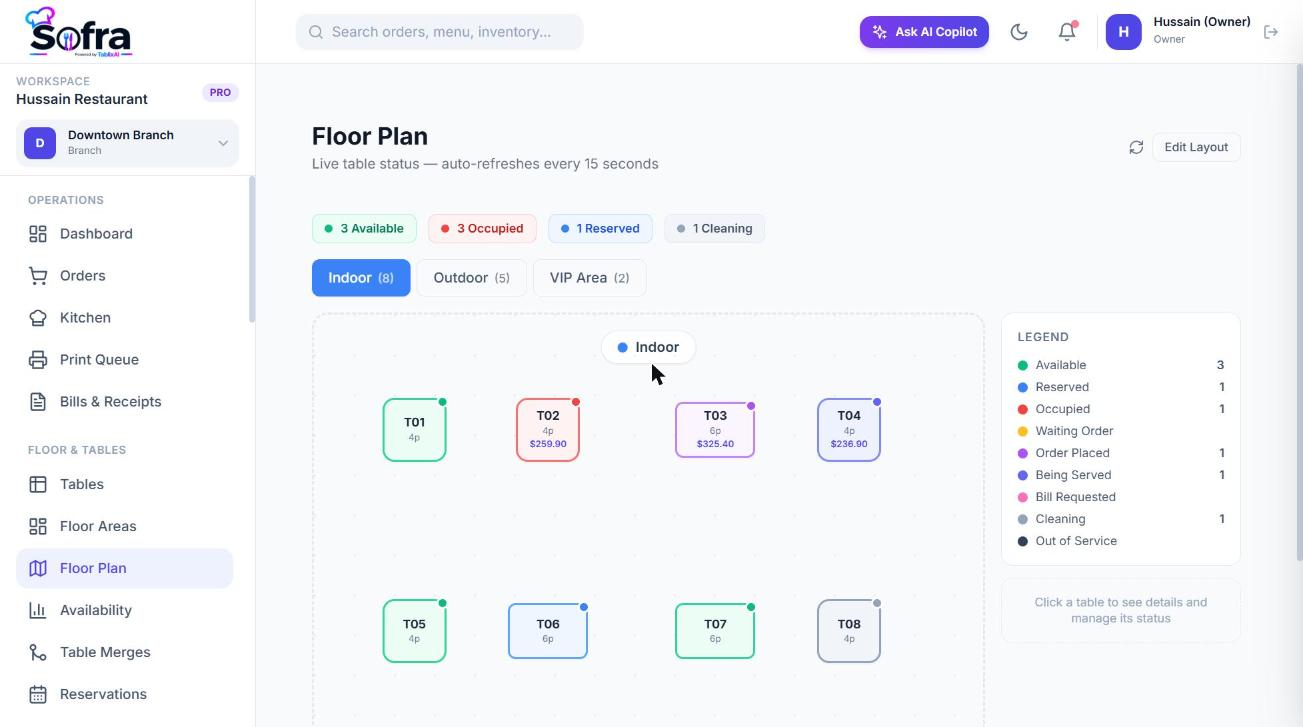
Table statuses
| Status | Meaning |
|---|---|
| Available | Free to seat. |
| Reserved | Held for an upcoming booking. |
| Occupied | Guests seated. |
| Waiting order | Seated, no order placed yet. |
| Order placed | An order has been created or confirmed. |
| Being served | Food is ready or being served. |
| Bill requested | The guests asked for the bill. |
| Waiting cleaning / Cleaning | Being reset for the next party. |
| Blocked | Temporarily unavailable, with a reason and optional end time. |
| Out of service | Taken out of use. |
Status normally follows the order automatically: placing an order marks the table *Order placed*, preparing marks it *Occupied*, ready or served marks it *Being served*, requesting the bill marks it *Bill requested*, and completing the order releases it. You can also set a status by hand.
Blocking a table
- Only managers (those who can see all tables) can block a table or take it out of service.
- You can give a reason and an end time. A block that has run out releases the table by itself.
- Blocking a table flags any upcoming bookings on it as needing reassignment, and warns if a party is currently seated.
- A table cannot be shown as free while an order is still open on it.
Availability timeline
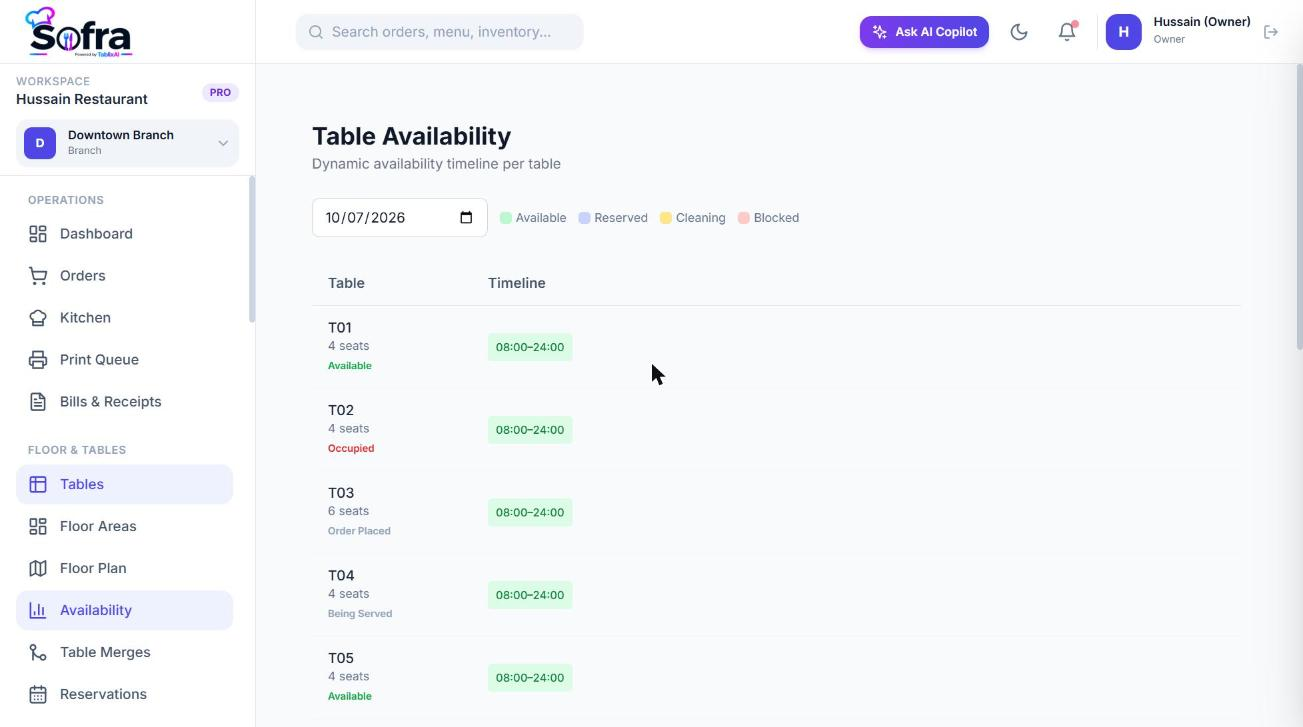
Floor & Tables → Availability shows, for a chosen date, each table across the day as a timeline of available, reserved, cleaning and blocked slots, taking into account reservations and the cleaning buffer.
Ready to try it?
Create a free account and follow along.