Account & owner portal
Sign up, verify your email, create and publish restaurants, and manage your profile.
The owner portal is where you create and manage your restaurants. It is separate from the restaurant app that your staff use every day. You sign in to the portal with your owner account; you then Open a restaurant to enter it.
Create your owner account
- 1
Open the sign-up page
From the Sofra website choose Start free.
- 2
Enter your details
Name, email, a password of at least 8 characters, an optional company name, your country, your phone number with country code (6 to 14 digits), and accept the terms.
- 3
Verify your email
We email you a link valid for 24 hours. Until you verify, the portal only lets you view your account or request a new link. You can request a new link once every 60 seconds.
The portal home
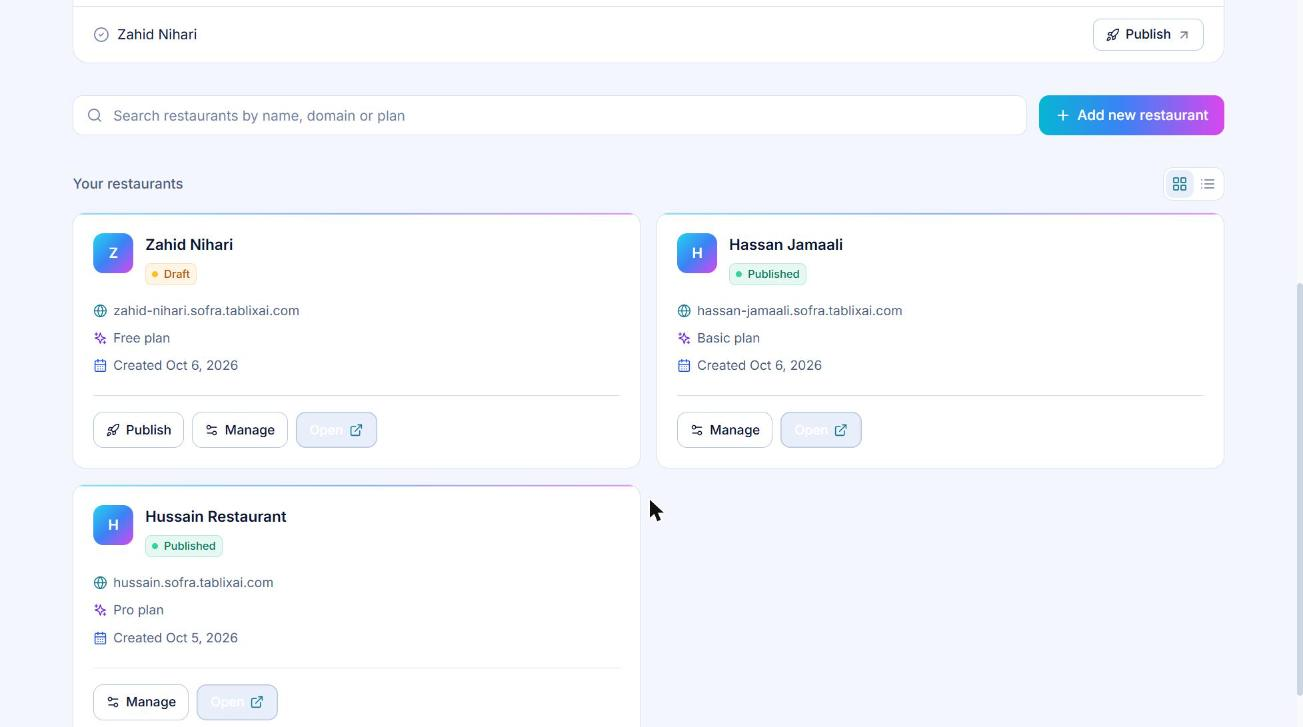
After you sign in, the portal lists your restaurants as cards. A header shows how many are live and how many are drafts. Use the search box to filter by name, domain, plan or status.
- Publish appears on draft restaurants. It makes the restaurant live.
- Open signs you in to the restaurant app in a new tab, as the owner, using a one-minute handoff link. You do not retype a password.
- Selecting a restaurant opens its management page with the tabs Domains, Subscription, Usage and Billing.
Add a restaurant
Choose Add new restaurant and fill in:
| Field | Rules |
|---|---|
| Restaurant name | Required. |
| Subdomain | 3 to 30 letters, numbers or dashes. Your address becomes <subdomain>.sofra.tablixai.com. Some names (such as app, api, www, admin, mail, docs) are reserved, and each subdomain can be used by only one restaurant. |
| Country | Two-letter country code. |
| Currency | Three-letter code such as USD. Defaults to USD. |
Sofra creates the restaurant in draft status on the Free plan, creates your owner login inside it, seeds the standard roles (Owner, Manager, Branch Manager, Cashier, Waiter, Kitchen) and creates a first branch called Main Branch, marked as head office.
Draft and published
- A draft restaurant is only reachable by its owner. Visitors to its address see a coming-soon page showing the restaurant name and logo, and staff cannot sign in.
- Publish switches it to published: the address becomes live and staff can sign in.
How staff sign in
Staff do not use the portal. They go to your restaurant’s address (the subdomain or your custom domain) and sign in with the email and password you created for them. Sofra decides which restaurant they belong to from the address they visited. If an email exists in several restaurants and no address is available, sign-in asks them to use their restaurant’s own domain.
Staff can use Forgot password on the sign-in page. A reset token valid for one hour is generated and used to set a new password.
Your profile
Open Profile in the portal to change your name, company, country and phone, or to change your password (current password required, new password at least 8 characters). Your email is your sign-in identity and cannot be changed here. Changing your name also updates your name on the owner row inside each of your restaurants.
Usage tab
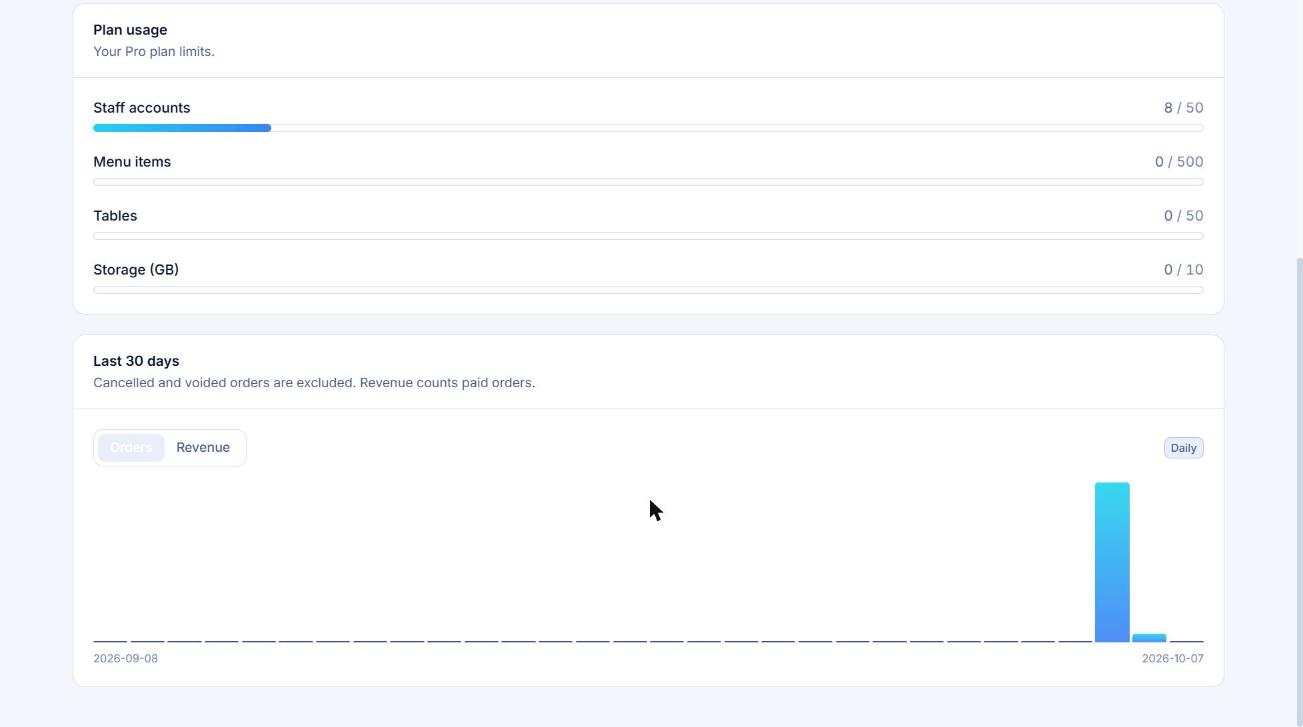
Each restaurant’s Usage tab shows consumption against your plan limits (staff accounts, menu items, tables, storage), the number of branches, orders all time and in the last 30 days, revenue for the last 30 days, and a daily chart of orders and revenue.
Ready to try it?
Create a free account and follow along.