Online booking page
A public page where guests reserve a table, then view or cancel with a confirmation code.
Each restaurant has a public booking page you can link from your website, social profiles or a QR code. Guests never need an account.
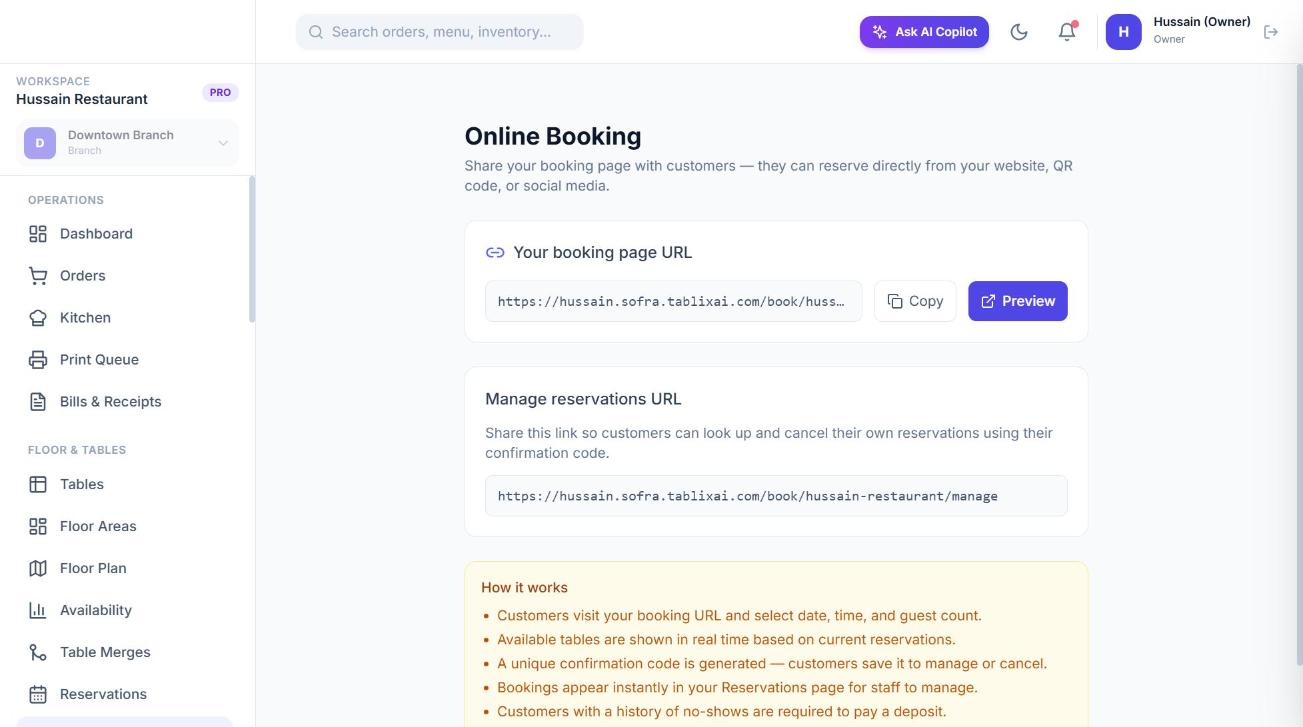
Your links
Go to Floor & Tables → Online Booking. You will see two links with Copy and Preview buttons:
- Booking page:
https://<your-address>/book/<restaurant-slug> - Manage reservations:
https://<your-address>/book/<restaurant-slug>/manage, where guests look up and cancel with a code.
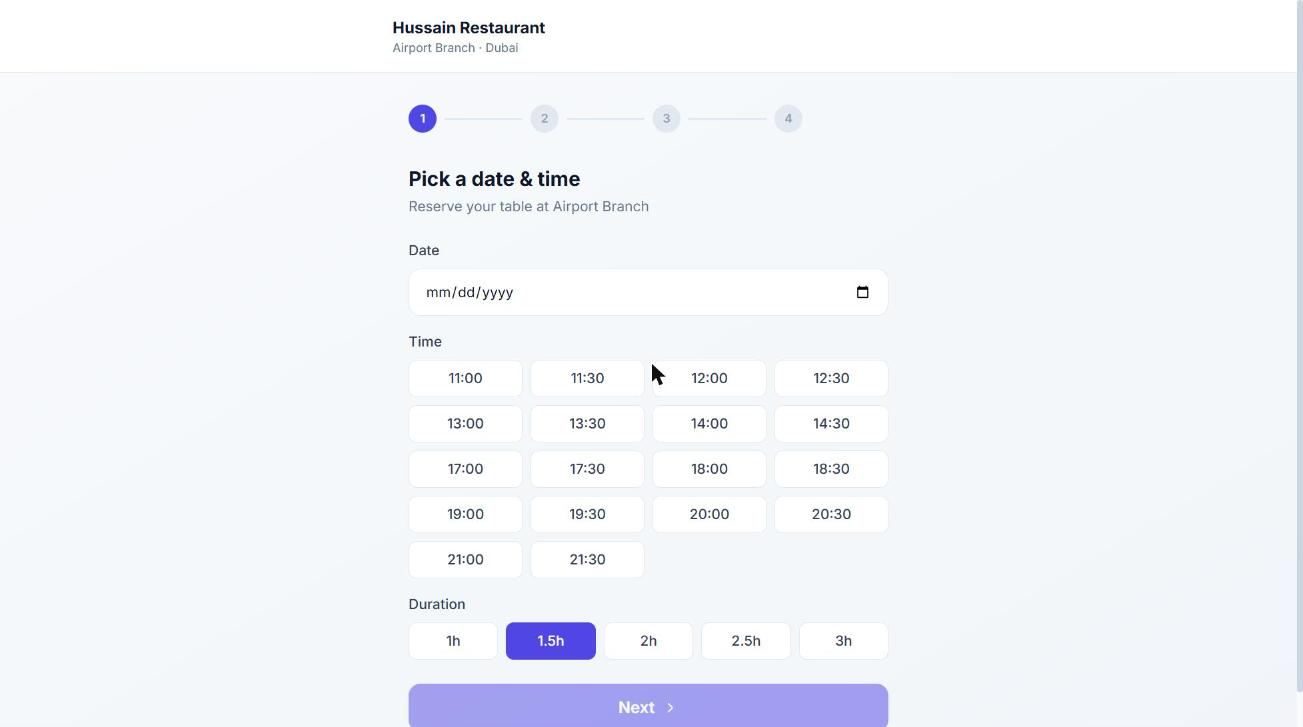
What the guest does
- 1
Choose date, time and party size
The page shows available tables in real time. Parties above 20 are asked to call the restaurant.
- 2
Pick a preferred area (optional)
The guest can choose an area or leave it as “No preference”.
- 3
Enter their details
Name, phone and email, plus occasion and special requests such as allergies.
- 4
Confirm
The guest sees “You’re booked!” with a confirmation code to save, and receives a confirmation email.
- Every online booking gets a real table, so the restaurant can never be overbooked. If the preferred table is lost to a race, Sofra tries the next best-fit table.
- Bookings start as Pending and appear instantly on your Reservations page. Double submissions are prevented.
- A guest cannot book two overlapping reservations.
- Guests with a history of no-shows are required to pay a deposit; guests who are temporarily restricted are asked to call.
- The page respects opening hours, closed days, closed areas and the cleaning buffer.
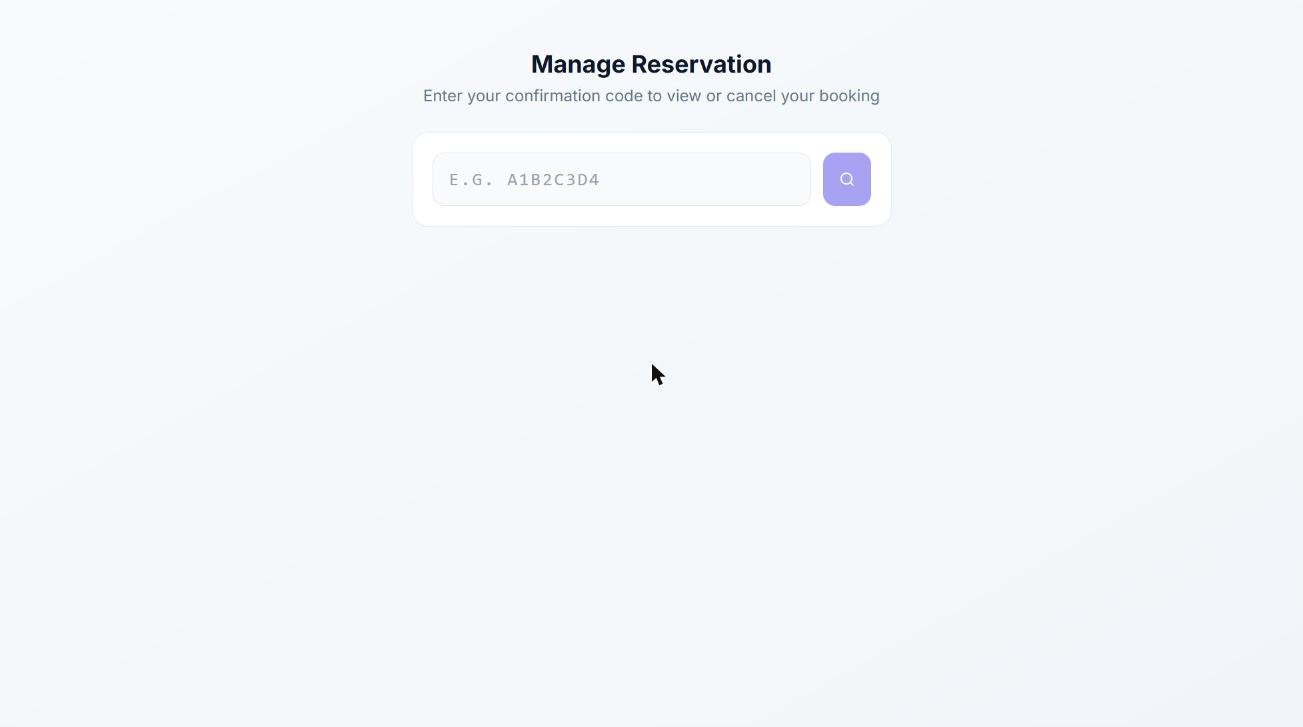
Managing a booking
On the manage page the guest enters their confirmation code to view the booking, cancel it, or reschedule it to a new time. Only pending or confirmed bookings can be changed. Rescheduling keeps their table if it is free at the new time, otherwise moves them to another that fits. If a deposit is paid and the booking is close, the change needs the restaurant’s approval.
Ready to try it?
Create a free account and follow along.