
Order lifecycle, payments, refunds & voids
Statuses by order type, partial and split payments, refunds, voids, transfers, merges and reopening.
Open any order from the Orders list to manage it through its life. The order page shows the items, totals, payments and a row of actions that depend on the order’s state and your permissions.
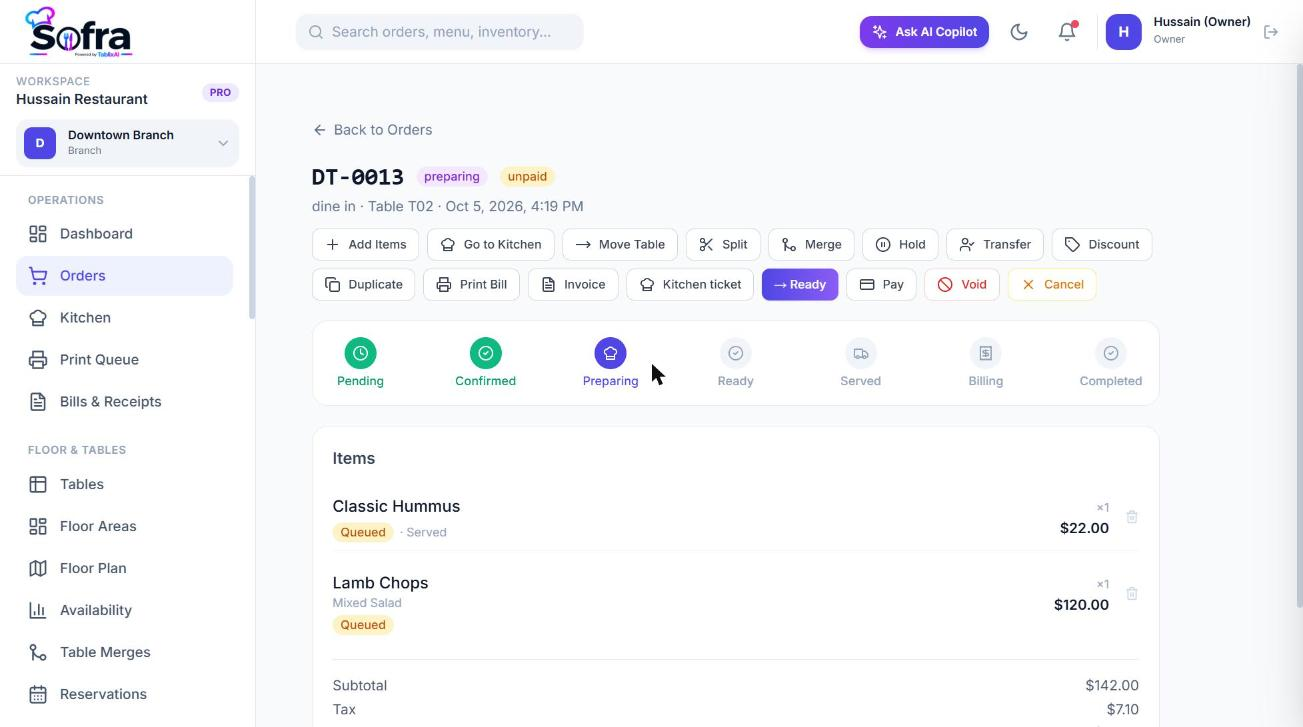
Status flow by order type
| Order type | Normal progression |
|---|---|
| Dine-in | Pending → Confirmed → Preparing → Ready → Served → Billing → Completed |
| Takeaway | Pending → Confirmed → Preparing → Ready for pickup → Picked up → Completed |
| Delivery | Pending → Confirmed → Preparing → Ready → Assigned → Out for delivery → Delivered → Completed |
Other states can be reached from any flow: Held, Cancelled and Voided.
- Moving an order to Confirmed or Preparing automatically sends any unsent items to the kitchen.
- Moving an order to Served, Completed, Delivered or Picked up marks all its non-cancelled items as served.
- When every item is served, the order advances to Served by itself.
- The table’s status follows the order automatically (see Floor areas, tables & floor plan).
Request the bill
For dine-in, once the order is Served or Ready, choose Request Bill. The order moves to Billing and the table to *Bill requested*.
Taking payment
- 1
Open Pay
Choose Pay on the order screen or the order page. The dialog shows the amount due.
- 2
Add payment legs
Choose a payment method, an amount and, if required, a reference (card last four digits, transaction ID). Add more legs to split the bill across methods.
- 3
Confirm
Sofra adds up the legs. When the total paid reaches the order total, payment status becomes Paid, the order Completed, and the table is released.
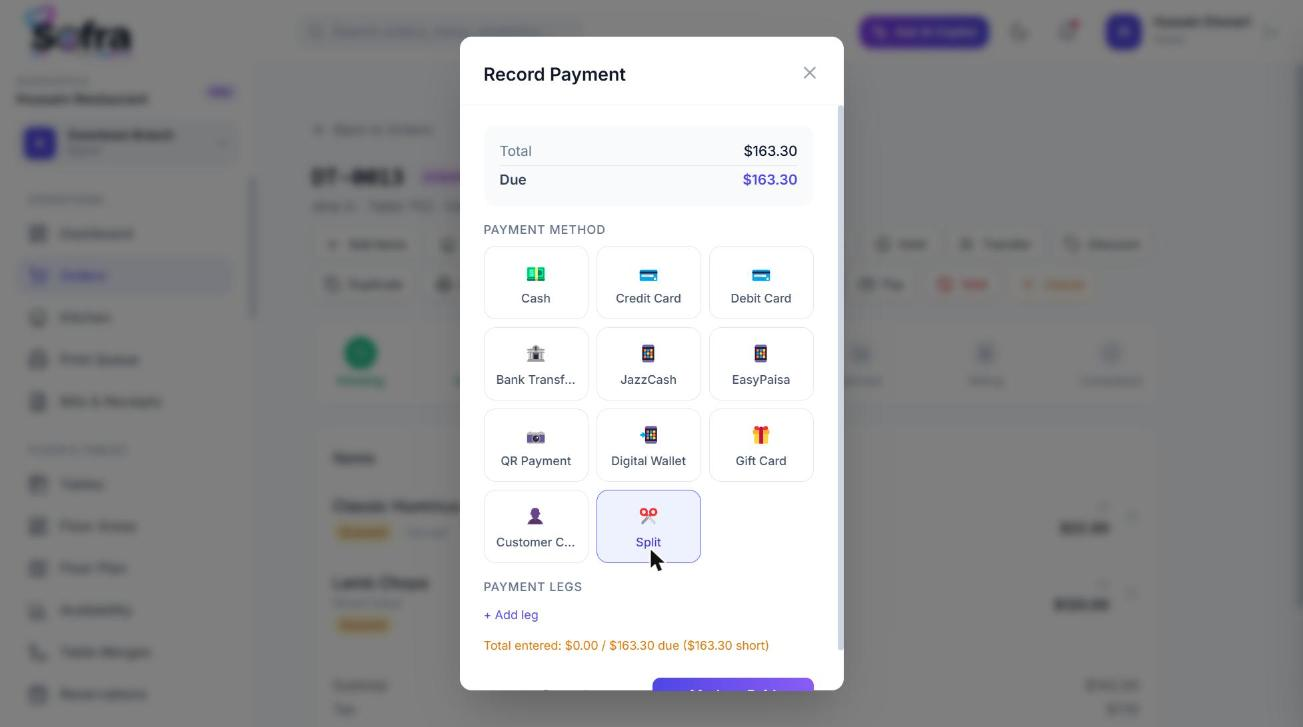
- Partial payments are allowed. The order shows *Partial* with the remaining balance until it is settled.
- Each leg records the method, amount, reference, who recorded it and when.
- Payment status values are Unpaid, Partial, Paid, Overpaid and Refunded.
- A fully paid, finished order cannot be paid again.
Split a bill by item
Create buckets (for example “Guest A”, “Guest B”), assign items to each, and pay each bucket on its own. Each bucket has its own subtotal, total and payment status; when all buckets are paid the order is settled.
Advanced order actions
| Action | What it does | Permission |
|---|---|---|
| Refund | Full or partial refund on a paid order, with a reason. Records who refunded and when and sets payment status to Refunded. | orders:refund |
| Split order | Moves selected items out of the order into a new order. | orders:write |
| Merge | Moves another order’s items into this one and cancels the source order, releasing its table. | orders:write |
| Duplicate | Clones the items into a new order. | orders:write |
Other actions (all plans)
- Add items to an existing order, or change an item’s quantity. Tax and service charge are recalculated on the new subtotal.
- Move table: releases the old table and claims the new one.
- Transfer to another waiter, with an optional reason. Every transfer is recorded in an audit log on the order.
- Hold an order, and Reopen a completed, cancelled or held order (a reason is recorded; a paid order goes back to unpaid).
- Edit pricing after creation: discount, coupon, tip, packaging fee and additional charges.
Voids and kitchen cancellations
| Action | When to use | Permission |
|---|---|---|
| Void item | Remove a single line (wrong order, guest changed their mind). A reason is optional. | orders:void |
| Void order | Cancel the entire order. A reason is required and the voider is recorded. | orders:void |
| Cancel kitchen item | An item already sent to the kitchen; it is marked cancelled and the kitchen screen shows it, and a cancel ticket can print. | orders:void |
| Mark item unavailable | Sets the item cancelled with an “unavailable” note when the kitchen cannot make it. | orders:write |
Printing from an order
The order page has Print Bill (or Print Receipt once paid) and Invoice. See Bills, receipts & invoices.
Ready to try it?
Create a free account and follow along.