Bills, receipts & invoices
Numbered customer documents with frozen snapshots, templates and a full history.
Sofra produces three customer documents from any order: a Bill (before payment), a Receipt (after payment) and an Invoice. Go to Operations → Bills & Receipts for the history, or print straight from an order.
Draft → finalized → void
| Status | What it means |
|---|---|
| Draft | Created from an order. It re-reads the live order, so it follows changes. |
| Finalized | Gets a gap-free document number and its data and template are frozen, so later edits to the order or template never change it. |
| Void | Cancelled with a reason. The number is never reused and the document stays in history. |
Numbers are allocated per branch and document type from the branch’s prefixes (for example INV).
Creating and printing
- 1
Generate
From the order page choose Print Bill (or Print Receipt once paid), or Invoice.
- 2
Choose a template
Use the default, or pick another to render the same data on a different paper size.
- 3
Finalize and print
Finalizing numbers and freezes the document; printing logs a delivery event. Reprints are logged too.
Every document keeps a delivery log (printed, reprinted, downloaded) and a print count. You can duplicate a document into a new draft.
What is on a document
- Restaurant name, branch, logo, address, phone, email, website and tax number.
- Order number, type, table, waiter, date and guest count.
- Customer name, phone, email and address if known.
- Items with quantity, unit price, modifiers and notes; subtotal, discounts, taxes and service charge, delivery and packaging fees, tip and total.
- Payments received, amount paid and change.
Document templates
Go to Settings → Document Templates. Sofra ships with built-in system templates:
| Type | Built-in templates |
|---|---|
| Receipt / Bill | Standard Receipt (default), Compact Receipt, Detailed Receipt |
| Invoice | A4 Invoice |
| Kitchen ticket | Standard Kitchen Ticket (80 mm), Compact Kitchen Ticket (58 mm) |
| Bar ticket | Bar Ticket |
| Takeaway pickup | Takeaway Pickup Ticket |
| Delivery | Delivery Packing Slip, Delivery Slip |
| Cancel | Cancel Ticket |
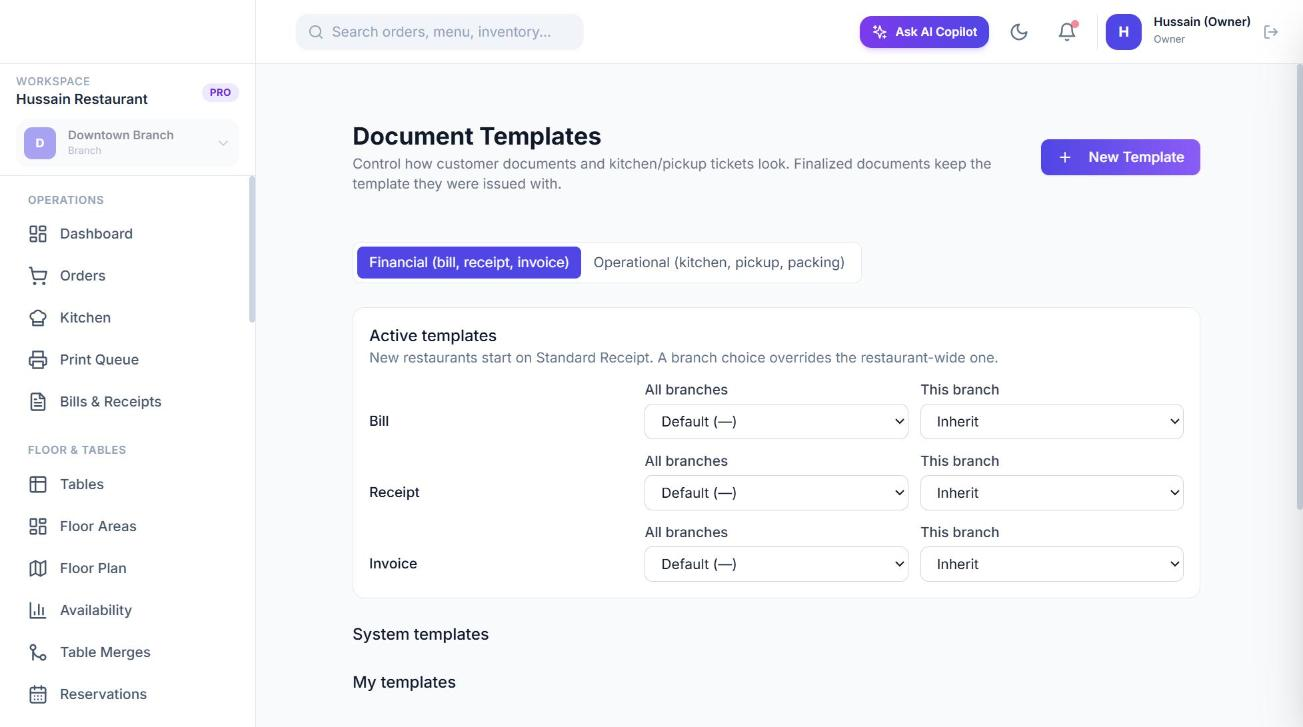
Choosing a template
For each document type pick the template to use for the whole restaurant or for the current branch only. Sofra resolves a template in this order: the one you asked for, the branch’s selection, a branch template, the restaurant’s selection, a restaurant template, and finally the system default.
Custom templates
Duplicate a system template or choose New Template, then set the name, document type, paper size (58 mm, 80 mm, A5, A4), layout (compact or detailed), alignment, font size, which fields show, the header and footer text (thank-you message, return policy, terms, website, QR code value, promo message) and which order types it applies to. A live preview with sample data updates as you edit. Deleting a template never affects finalized documents because they keep their own copy.
The Sofra mark
Customer documents carry a small Sofra mark in a corner. Pro Plus restaurants can turn it off in their template for fully white-labelled documents.
Permissions
Viewing needs documents:view (staff without documents:view_all see only documents they created or for their own orders). Other actions need documents:create, documents:finalize, documents:print, documents:reprint, documents:void and documents:templates_manage.
Ready to try it?
Create a free account and follow along.